Your LinkedIn profile already holds most of what a resume needs: your roles, dates, skills, education and languages. So there is no reason to start from a blank page. Below are three ways to turn it into a resume, depending on what you need it for: standing out on LinkedIn, a quick copy for yourself, or a classic resume for job applications.
First: download your LinkedIn profile as a PDF
All three methods start from the same file, and it takes ten seconds:
- Open your own profile on LinkedIn, on a computer (it does not work from the mobile app).
- Click Resources or More under your headline. LinkedIn changes the label from time to time.
- Choose Save to PDF. You get a file called
Profile.pdf.
If the download starts but never finishes, wait half a minute: long profiles take a while. Still stuck? Try a private window, which turns off browser extensions such as ad blockers, or a different browser.
1. Make a Pixel CV to stand out on LinkedIn (Pixelin)
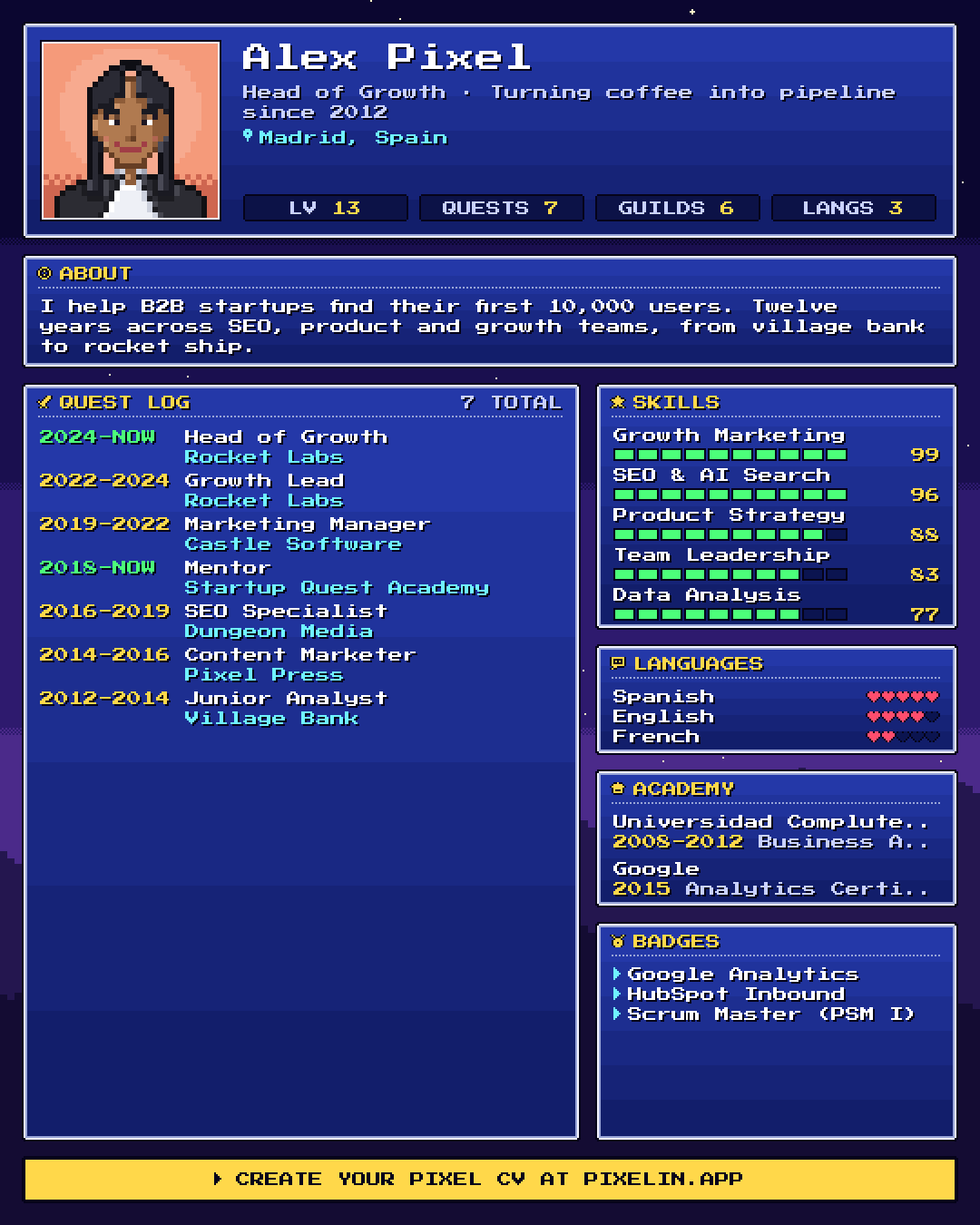
If the goal is to get noticed, a regular resume will not do much in a LinkedIn feed full of text posts. A Pixel CV turns your profile into a 16-bit, RPG-style character sheet: your experience becomes a Quest Log, your years of experience your level, your skills turn into stat bars and your languages into hearts.
How to make one:
- Go to Pixelin and drop in your LinkedIn PDF.
- Pick one of the pixel-art avatars, or turn your own photo into pixels.
- Choose a style (Castle, Game Boy, Cyber and more), then download the PNG or share it straight from your phone.
It takes under a minute, it is free, and there is no sign-up. Your PDF and your photo are processed in your browser and never uploaded anywhere. The image is 1080 × 1350 pixels, the portrait size that takes up the most space in the LinkedIn feed.
Best for: a “new job” or “open to work” post, a personal brand refresh, or simply a post people stop to look at. Changing jobs? Here is how to leave a job on good terms, announcement included. Not for: applying to jobs through online forms. Applicant tracking systems need text, not an image (see option 3).
2. Use LinkedIn’s PDF as it is
The PDF you just downloaded is already a resume of sorts. It lists your headline, summary, experience, education, skills and languages, and you can send it as is.
Pros: instant and free, and always up to date with your profile. Cons: the layout is plain and the same for everyone, it often runs to several pages, and it includes everything, from your first job to every role description, instead of what matters for a specific position.
Best for: a quick reference copy, or when someone asks for “your LinkedIn as a PDF”.
3. Move it into a classic resume template (for job applications)
When you apply for a job, a classic resume still wins. Many companies run applications through an applicant tracking system (ATS) that reads the text of your resume, so a clean, simple document works better than a designed one.
The fastest way: drop the same PDF into Pixelin’s LinkedIn to resume tool. It lays your profile out as a one-column resume with standard headings, lets you edit any line in the preview and downloads it as an A4 PDF with real text, all in your browser. If you prefer to build it yourself, Google Docs and Microsoft Word both come with free resume templates: copy your details over from the LinkedIn PDF.
Either way, then:
- Keep it short: one page for most people, two if you have long experience.
- Tailor it to the role: keep the jobs and achievements that matter for this position and cut the rest.
- Use standard headings such as Experience, Education and Skills, and avoid tables, columns and images that an ATS may not read.
- Mirror the job description: use the same words the offer uses for the skills you really have.
- Show results with numbers where you can (“grew sign-ups 40%” beats “responsible for growth”).
- Stay consistent with LinkedIn: the same job titles and dates on both, so nothing looks off to a recruiter who checks.
Best for: applying to job offers, especially through online forms. Applying abroad? Check whether the posting expects a CV or a resume.
Is there a LinkedIn resume builder?
Not in the sense most people mean. LinkedIn does not turn your profile into a designed resume: Save to PDF is the closest built-in option, and it gives you the plain document from option 2. So a “LinkedIn resume builder” is really any tool that takes your profile and turns it into a resume for you:
- Pixelin builds the visual, shareable version from your LinkedIn PDF (option 1).
- Pixelin’s LinkedIn to resume tool turns the same PDF into a classic, ATS-friendly resume you can edit and download as an A4 PDF (option 3).
- Other resume builders and templates do the same job with more designs to choose from. Most ask you to copy your information over or import the PDF, and many ask for an account or a subscription to download.
Whichever you use, update your LinkedIn profile first. It is the single source the others are built from, and recruiters will compare them.
Which one should you use?
| You want to… | Use |
|---|---|
| Get noticed in the LinkedIn feed | A Pixel CV, made with Pixelin |
| Send a quick copy of your profile | LinkedIn’s PDF, as is |
| Apply to a job offer | A classic resume, made with LinkedIn to resume or a template |
They are not mutually exclusive. Many people keep a classic resume for applications and share a Pixel CV on LinkedIn to get noticed. Your LinkedIn PDF is the starting point for both.
Next steps: see how to make your resume stand out, and once it is ready, how to add your resume to LinkedIn.
FAQ
Can I turn my LinkedIn profile into a resume for free?
Yes. LinkedIn's own Save to PDF is free, Pixelin is free with no sign-up, and Google Docs and Microsoft Word both include free resume templates you can paste your LinkedIn details into.
Is a Pixel CV ATS-friendly?
No, and it is not meant to be. A Pixel CV is an image designed to be shared on LinkedIn and get noticed. When you apply for a job through a website or an applicant tracking system, send a classic text resume instead.
Does Pixelin upload my LinkedIn PDF anywhere?
No. Pixelin reads your PDF and draws your Pixel CV inside your browser. Your file and your photo never leave your device.
How do I download my LinkedIn profile as a PDF?
On a computer, open your own LinkedIn profile, click Resources or More under your headline, and choose Save to PDF. It does not work from the mobile app. If the download stalls, try a private window or another browser.
How do I download my resume from LinkedIn?
To download your profile as a resume, use Save to PDF under Resources or More on your own profile, on a computer. If you uploaded a resume when applying for jobs on LinkedIn, you can find and download it again in your job application settings.
Should my resume and my LinkedIn profile say exactly the same thing?
They should not contradict each other, so keep job titles and dates consistent. But a resume should be shorter and tailored to each role, while your LinkedIn profile can tell the fuller story.

Written by
On the internet since 1995 and launching online products since 2009, from one of the first app marketing agencies to tools like Pixelin. Writes about LinkedIn, resumes and standing out online.