There are four places your resume can live on LinkedIn, and they work differently: some are public, some are only shared when you apply. Pick the right one for what you want, and you will get more out of it. LinkedIn renames buttons from time to time, so the labels below may vary slightly.
Before you upload: get the file ready
- Use a PDF so the layout does not change.
- Remove private details such as your phone number and home address if the resume will be public.
- Match your profile: the same job titles and dates on both. If you need a resume first, turn your profile into one with our free LinkedIn to resume tool, or see how to turn your LinkedIn profile into a resume.
- Name the file well, for example
Jane-Doe-Resume.pdf. People see the file name.
1. Add it to your profile’s Featured section (public)
Featured sits near the top of your profile, so it is the most visible place.
- Go to your profile and click Add profile section (or Add section).
- Open Recommended and choose Add featured.
- Click + and choose Add media, then pick your PDF.
- Give it a clear title, such as Resume – Product Manager, and a one-line description, then Save.
Best for: freelancers, consultants and anyone openly job hunting.
2. Save it for job applications (private)
If you apply through LinkedIn, saving your resume once makes every application faster, and it is only shared with the companies you apply to.
- Open Settings & Privacy from the Me menu.
- Go to Data privacy, then Job application settings.
- Upload your resume and choose whether to save it for future applications.
You can also upload a resume directly in an Easy Apply form; LinkedIn offers to keep it for next time.
Best for: applying to jobs without making your resume public.
3. Share it as a document post (public)
A post with your resume as a document lets your network flip through it in the feed.
- Click Start a post.
- Choose the option to add a document (it may sit under the + or More icon) and upload your PDF.
- Give it a title and write a short message: what role you are looking for and how people can help.
Best for: announcing that you are open to work and asking your network for introductions. Remember that posts can be reshared.
4. Attach it to an experience entry (public)
You can add files to a specific role: edit the position on your profile, scroll to Media, and add the file. This works better for a portfolio piece or a case study than for a full resume, but it is an option.
How to upload your resume in the LinkedIn app
You can do all of the above from your phone, with one catch: the app needs the file to be on your phone first. Save the PDF to Files (iPhone) or your Downloads folder (Android), or to a cloud drive such as Google Drive, iCloud or OneDrive.
- Featured: open your profile, tap Add section (or the + next to Featured), choose Add featured, then Add media and pick your PDF.
- Easy Apply: when you apply to a job in the app, tap Upload resume in the form and choose the file. LinkedIn offers to keep it for your next applications.
- Job application settings: tap your photo, open Settings, then Data privacy and Job application settings. In some versions of the app this sits under Job seeking preferences.
- Document post: tap Post, then the + icon, choose Add a document and pick your PDF.
Labels move around between app versions. If you cannot find an option, the desktop site always has it. The one thing the app cannot do is Save to PDF: downloading your own profile as a PDF only works on a computer.
Make it stand out: add a Pixel CV
A PDF in your Featured section looks like every other PDF. An image gets more attention. A Pixel CV is your LinkedIn profile turned into a 16-bit, RPG-style character sheet that shows your level (years of experience), your quests (roles) and your skills at a glance.
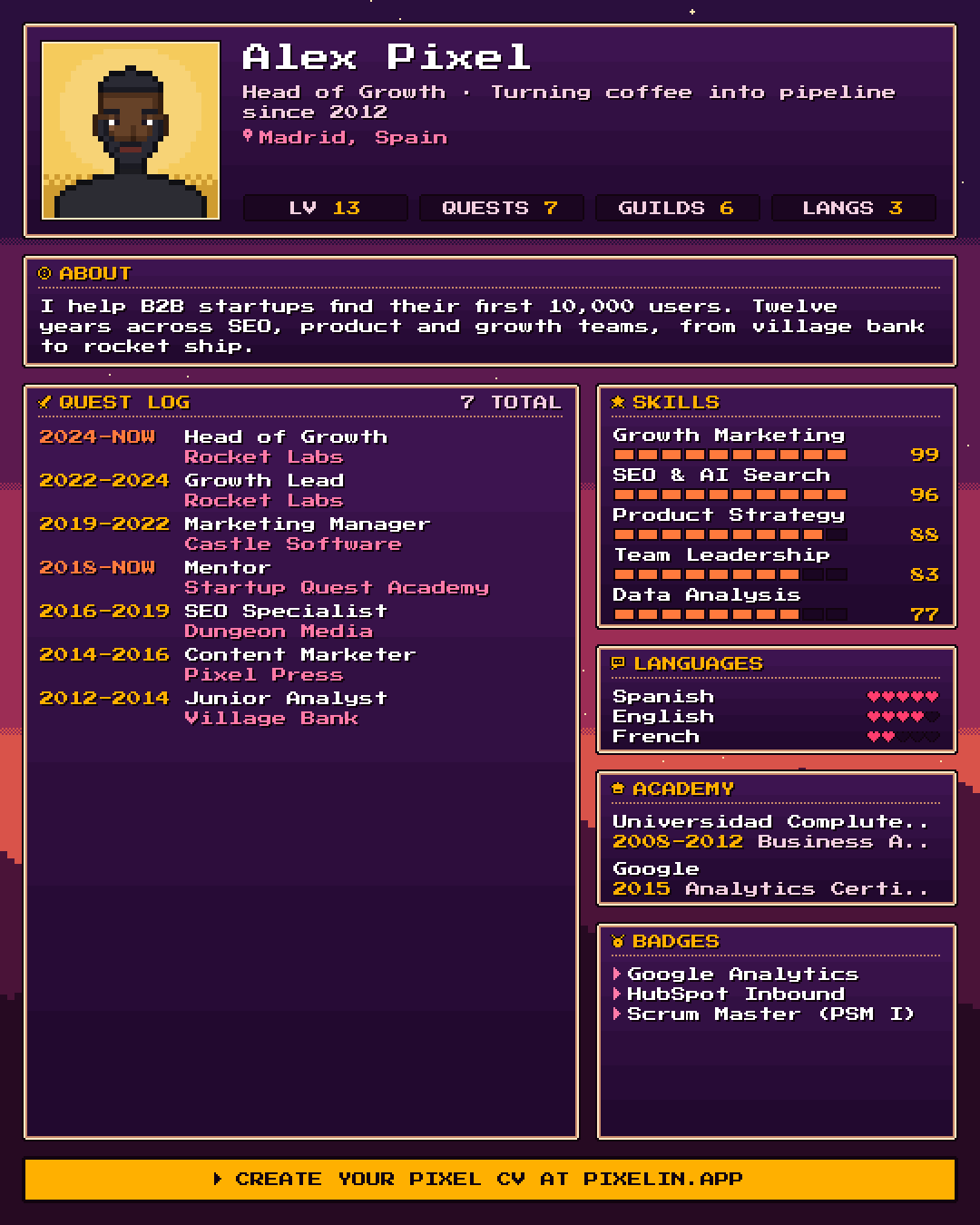
- Drop your LinkedIn PDF into Pixelin, pick an avatar or your own photo, choose a style and download the PNG.
- Add it to Featured as media (step 1 above), or share it in a post.
- Keep your classic resume in your job application settings for when you apply.
For what makes the PDF itself worth opening, see how to make your resume stand out.
How to update or remove your resume
LinkedIn does not swap files in place. To update:
- Featured: open the item, delete it, and add the new file.
- Job application settings: delete the old resume and upload the new one.
- Posts: delete the old post or simply share a fresh one.
How to find your resume on LinkedIn
Where your resume is depends on how you added it:
- Saved for job applications: open Settings & Privacy, then Data privacy and Job application settings. Your saved resumes are listed there with the date you uploaded them, and you can download or delete each one.
- Sent with an application: go to Jobs, then My jobs and Applied. Open an application to see what you sent.
- In Featured: on your profile, near the top. Open the item to view or download the file.
- As a post: on your profile, open Activity and then Documents or Posts.
Looking for “your LinkedIn resume”, meaning your profile as a resume? LinkedIn does not keep one. Use Save to PDF under Resources or More on your profile (on a computer), or drop that PDF into LinkedIn to resume to get a clean, ATS-friendly resume you can download as an A4 PDF.
Which option should you use?
| Goal | Where |
|---|---|
| Apply to jobs privately | Job application settings |
| Be found by recruiters and clients | Featured section |
| Tell your network you are looking | A document post |
| Get noticed in the feed | A Pixel CV image in Featured or a post |
FAQ
Can recruiters see the resume I upload for job applications?
A resume saved in your job application settings is shared with the employer when you apply with it. It is not shown on your public profile. A resume you add to your Featured section or share in a post is visible to anyone who can see your profile or post.
Should I put my resume on my LinkedIn profile?
It can help, especially if you are actively looking. Remove your phone number and home address first, and keep the resume consistent with your profile. Many people prefer a visual summary, such as a Pixel CV image, in the Featured section instead.
Can I upload my resume from the LinkedIn app?
Yes. Save the PDF to your phone or a cloud drive first, then add it to Featured, attach it in an Easy Apply form or share it as a document post from the app. Saving your profile as a PDF is the one thing that only works on a computer.
Where can I find the resume I uploaded to LinkedIn?
Resumes you saved for job applications are in Settings, under Data privacy and then Job application settings, where you can download or delete them. A resume in your Featured section is on your profile, and one shared as a post is in your activity.
How do I update my resume on LinkedIn?
LinkedIn does not replace files in place. Delete the old version from your Featured section, post or job application settings, then upload the new one.
What file formats does LinkedIn accept for resumes?
PDF is the safest choice, and Word documents are accepted in job applications. Use a PDF so your layout stays exactly as you designed it.
Can I add a Pixel CV to my LinkedIn profile?
Yes. Download your Pixel CV from Pixelin as a PNG and add it as media in your Featured section, or share it in a post. It is an image, so it shows up large and catches attention.

Written by
On the internet since 1995 and launching online products since 2009, from one of the first app marketing agencies to tools like Pixelin. Writes about LinkedIn, resumes and standing out online.