The banner, which LinkedIn now calls your cover image, is the biggest image on your profile, and most people leave it as the default blue-grey gradient. Changing it takes ten minutes, and a good one tells visitors what you do before they read a word.
Below you’ll find the exact size, where your profile photo gets in the way, 20 ideas organized by goal and by job, a step-by-step guide to making one, and six free pixel-art banners you can download and use right away, or recolor and add your own text to in our free LinkedIn banner maker.
LinkedIn banner size and specs
According to LinkedIn’s help pages, the cover image on a personal profile should be:
| Spec | Value |
|---|---|
| Recommended size | 1584 × 396 pixels (4:1 ratio) |
| File type | JPG or PNG |
| Maximum file size | 8 MB |
A few things the numbers don’t tell you:
- Your profile photo covers part of it. On a computer, the round photo sits over the lower-left area. Nothing important should go there.
- The visible area changes with the screen. LinkedIn notes that the image can look different depending on the browser window and screen. On phones, the banner is shown smaller and more of the sides can be cut. Keep key elements toward the center and right.
- Small text blurs first. If you add text, make it big. If your image looks blurry, LinkedIn recommends uploading a larger, higher-quality file.
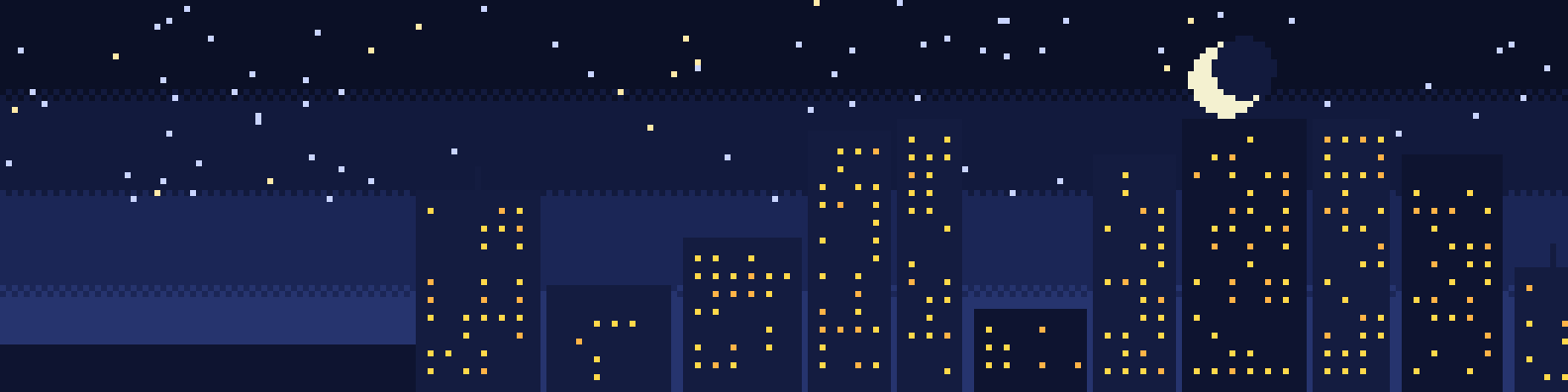
Notice how the left of this banner is calm and dark: that’s where your photo will go.
20 LinkedIn banner ideas
Ideas by goal
Start with what you want people to think when they land on your profile.
1. Show your work. A designer’s best project, a developer’s app on a phone, a chef’s dish, a builder’s finished house. A photo of real work beats any slogan.
2. Say what you do in five words. A short line in large type: “Websites for local restaurants”, “I help teams ship faster”. Put it on the right half.
3. Show where you work. A city skyline, your office, your workshop, your classroom. It’s simple, honest and helps local clients and recruiters place you.
4. Proof in numbers. For sales, marketing and consulting: “40+ brands launched · 12 countries · 2M users”. Three numbers at most.
5. A call to action. If you want people to do something, say it: “Book a free call: yoursite.com”, “Download my portfolio”, “Hiring engineers in Berlin”.
6. Your logos or credentials. Certifications (PMP, CPA, AWS) or, for freelancers, the logos of clients you’ve worked with, if they agree to it.
7. You in action. Speaking at a conference, teaching a workshop, running a site visit. It shows confidence and experience in one image.
8. Your company’s banner. Many companies offer employees an official cover image. It’s a safe, consistent choice, especially in sales and recruiting.
9. Something you’ve made. A book cover, a podcast, a newsletter, an open-source project. Add one line on where to find it.
10. A clean color field. A gradient or pattern in your personal or company colors. Calm, professional, and it never looks out of date.
11. A landscape you love. Mountains, the sea, a forest. It says little about your job, but it’s far better than the default and gives your profile some warmth.
12. Something that shows your personality. Pixel art, an illustration, a hobby that connects to your work. The free banners below are an example.
Ideas by job
| Job | Banner idea |
|---|---|
| Software engineer | Your app or terminal on screen, a clean code-themed pattern, or a short line with your stack |
| Designer | A strip of three or four of your best projects |
| Marketer | One result in big numbers, or a campaign you’re proud of |
| Salesperson / account manager | Your company’s banner, or the problem you solve for customers in one line |
| Recruiter | “We’re hiring” with the roles and a link, or a team photo |
| Teacher / trainer | Your classroom or a workshop photo, with what you teach |
| Healthcare professional | A calm photo of your field or hospital, or a simple color field (avoid patient photos) |
| Student / graduate | Your campus, your field of study, or a project you built |
Free pixel-art LinkedIn banners
We made six 16-bit banners in the same style as a Pixel CV. Each is exactly 1584 × 396 pixels, keeps the lower-left corner clear for your photo, and is free to use, without credit. Open one and save it (right-click → Save image as on a computer, or long-press on a phone).
Open “Night city” (PNG, 1584 × 396)
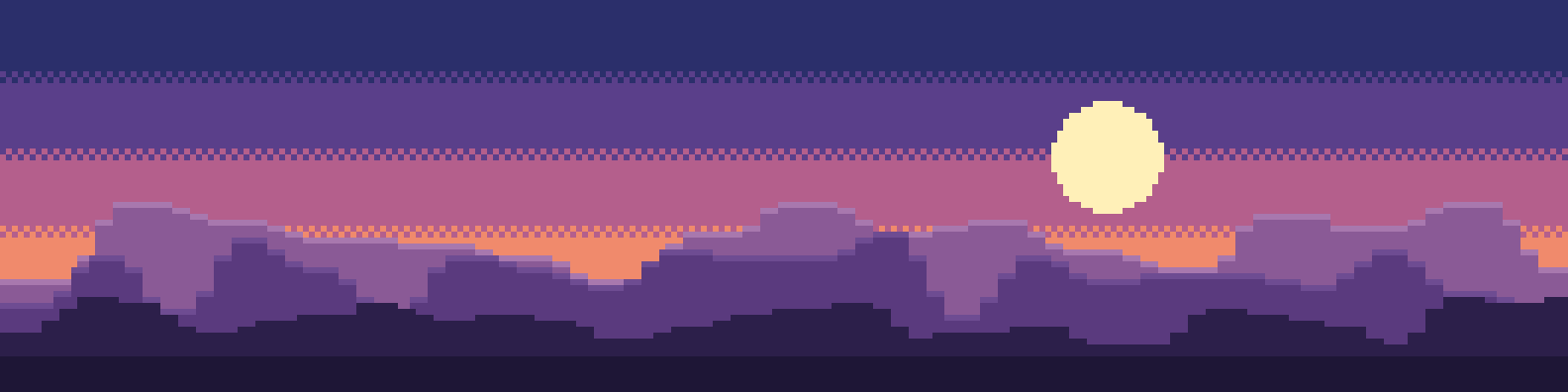 Open “Mountain sunrise” (PNG, 1584 × 396)
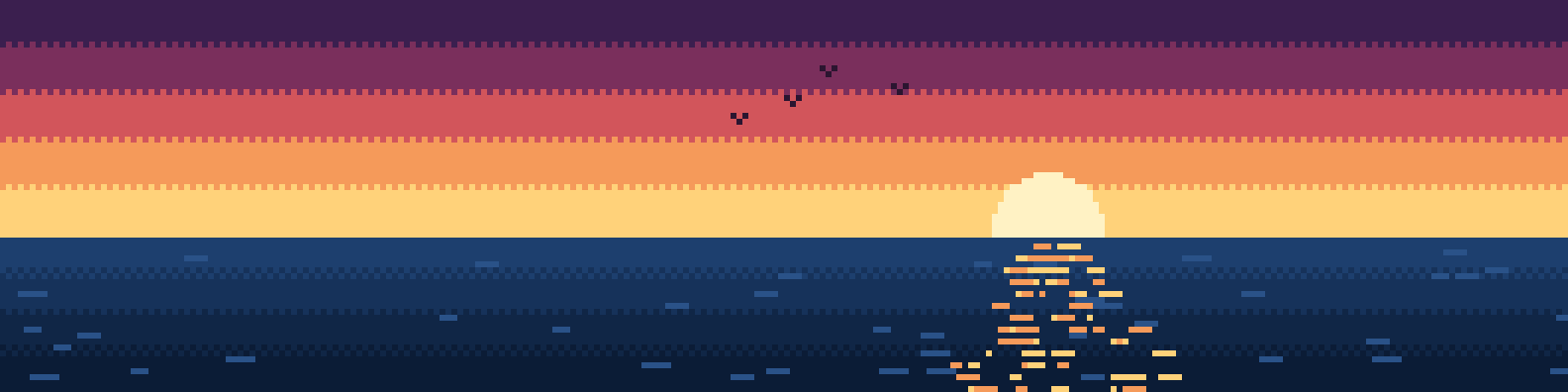 Open “Ocean sunset” (PNG, 1584 × 396)
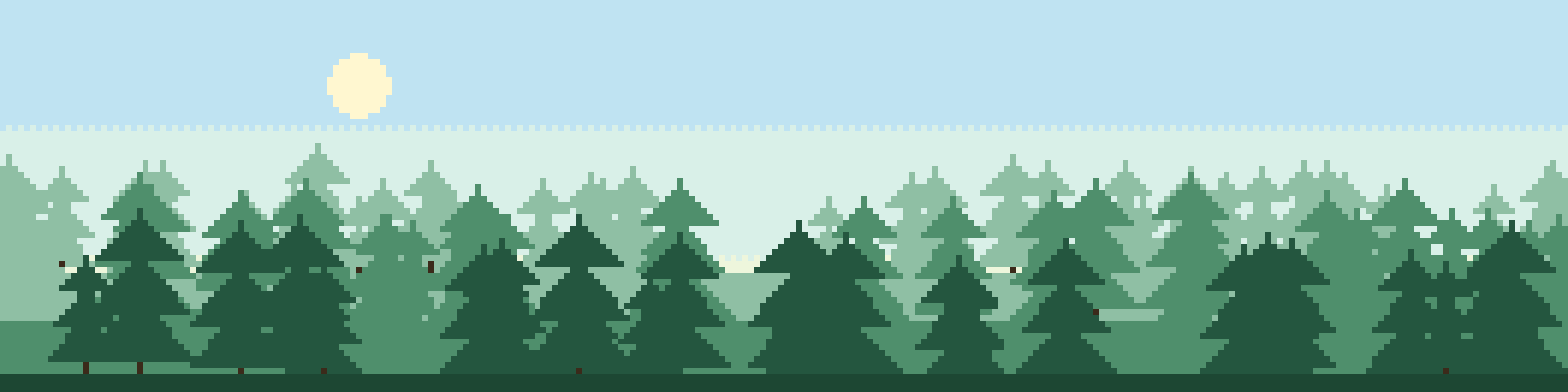 Open “Pine forest” (PNG, 1584 × 396)
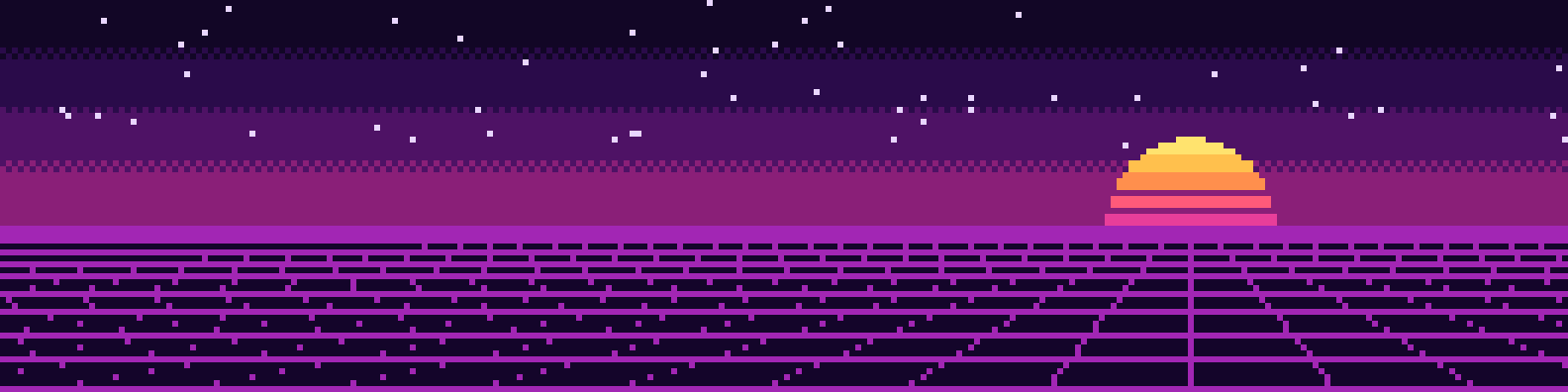 Open “Retro grid” (PNG, 1584 × 396)
 Open “Deep space” (PNG, 1584 × 396)
Want one in your colors, with a line of text? Open the same scenes in the LinkedIn banner maker: shuffle the layout, shift the colors and add your text, then download it at 1584 × 396.
Pixel art works well as a banner because it has big, flat shapes with no fine detail to blur, and it looks deliberate rather than like a stock photo. If you want to add text, put it in the top-right area, where every scene has open sky.
How to make your own banner
You don’t need design skills. Any of these will do:
- Our LinkedIn banner maker. Pick a pixel-art scene, change its colors, add a line of text and download it at the right size. Free, in your browser.
- A free design tool. Canva, Adobe Express and Figma all let you start from a 1584 × 396 canvas, and Canva and Adobe Express have LinkedIn banner templates.
- A photo you already have. Crop it to a 4:1 ratio, at least 1584 pixels wide. Most phones and photo apps can crop to a custom ratio.
- Your company’s brand kit. Ask marketing; many have an official banner.
Step by step:
- Create a canvas of 1584 × 396 pixels.
- Mark the danger zone. Draw a rough circle in the lower left, about a quarter of the width, where your photo will sit. Keep it empty.
- Place your background: a photo, a color, a pattern or one of the banners above.
- Add text only if it helps: five to eight words, large, high contrast, on the right half.
- Export as PNG or high-quality JPG, under 8 MB.
- Upload it and check it on a phone before you call it done.
How to upload or change your LinkedIn banner
On a computer:
- Click Me at the top of LinkedIn, then your profile.
- Click the camera icon in the top-right corner of your introduction section.
- Upload your image, adjust the crop and position, and click Apply.
To change or reposition it later, click the edit (pencil) icon on the top-right of the cover image. LinkedIn Premium members can also create a slideshow of several cover images. One more thing: if you go live on LinkedIn, the cover image temporarily shows your live stream and comes back afterwards.
Mistakes to avoid
- Keeping the default. It’s the fastest sign of a profile nobody looks after.
- Text under your photo. Check where the circle falls before adding anything to the left.
- Too much text. Your headline is right below the banner. The banner doesn’t need to repeat it.
- Low resolution. A 900-pixel image stretched to 1584 will look soft on every screen.
- Busy images. Crowds, clutter and fine patterns make your photo and name harder to read. Simple wins.
- Out-of-date details: an old employer, a past event, a finished campaign.
- Other people’s work or logos without permission, including clients you haven’t asked.
Make the rest of your profile match
A banner works best when the profile below it tells the same story. Next, sharpen the line under your name with these LinkedIn headline examples, then expand on it in your About section with these LinkedIn About section examples.
And if you liked the pixel-art banners, there’s a matching card for your whole profile.
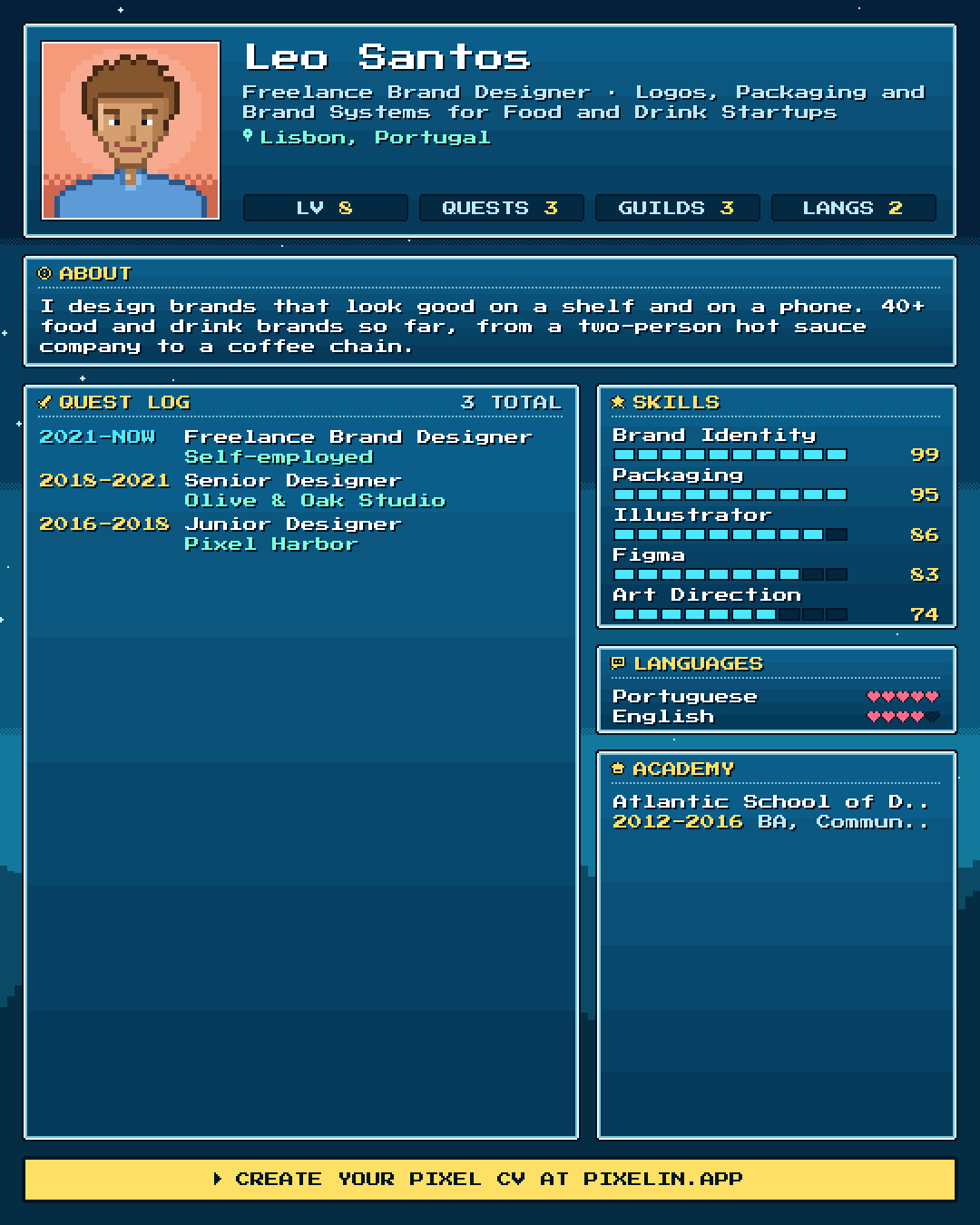
A Pixel CV turns your LinkedIn profile into a 16-bit, RPG-style character sheet you can share as a post. Pixelin makes one from your LinkedIn PDF, free, without the file leaving your browser.
FAQ
What size is a LinkedIn banner?
LinkedIn recommends 1584 × 396 pixels (a 4:1 ratio) for the cover image on a personal profile, as a JPG or PNG file under 8 MB. Company pages use a different size.
Why does my LinkedIn banner look blurry?
Usually because the image is smaller than 1584 × 396 pixels or was heavily compressed. Start from an image at least that size, export it at high quality, and avoid small text, which blurs first. LinkedIn also suggests that photos tend to look better than images with logos.
What part of the banner does the profile photo cover?
On a computer, your round profile photo sits over the lower-left part of the banner. On phones the banner is shown smaller and the photo overlaps it differently. Keep text and important details in the center and right, and check your profile on a phone after uploading.
Should I put text on my LinkedIn banner?
A few words can help, such as what you do, a tagline or where to find your work. Keep it short, large and away from the lower left. Your headline already sits right below the banner, so don't repeat it word for word.
Can I use these free pixel-art banners?
Yes. The six banners in this article were made by Pixelin and are free to download and use as your LinkedIn cover image, personal or commercial, without credit.
Does a LinkedIn banner help you get a job?
Not on its own, but it makes your profile look cared for and can reinforce what you do in a second. Recruiters judge the profile as a whole, and a default blue banner suggests a profile nobody has touched in years.

Written by
On the internet since 1995 and launching online products since 2009, from one of the first app marketing agencies to tools like Pixelin. Writes about LinkedIn, resumes and standing out online.